About
Beyond Good & Evil is the 2003 original action-adventure game directed by Michel Ancel at Ubisoft Montpellier (Steam appid 15130 — *not* the 2011 console-only HD remaster, nor the separate 20th Anniversary Edition, appid 2556990). Players control Jade, an investigative reporter who, alongside her companion Pey'j, uncovers a government conspiracy on the mining planet Hillys, blending exploration, stealth, photography, light combat, and vehicle sections. The original PC release was a cult classic praised for its art, story, and characters despite modest commercial sales, and was delisted from Steam around the 20th Anniversary Edition launch (2024).
Screenshots
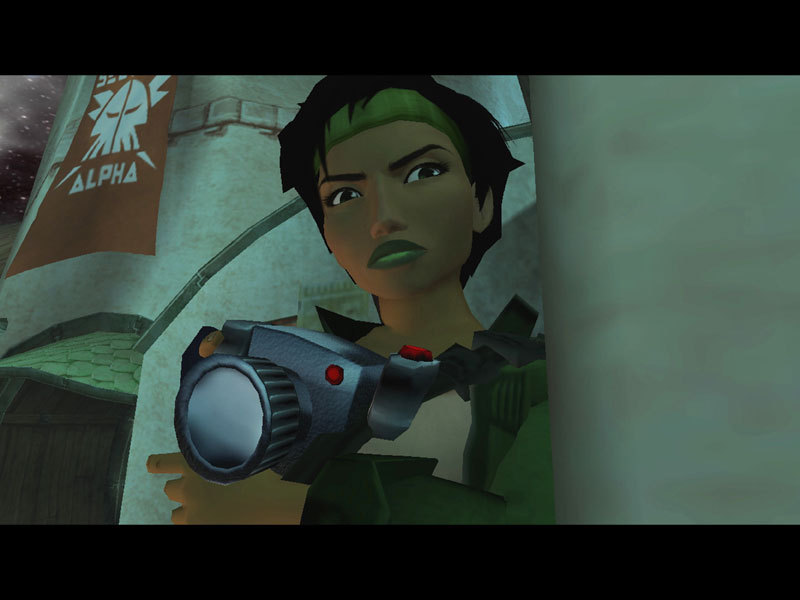
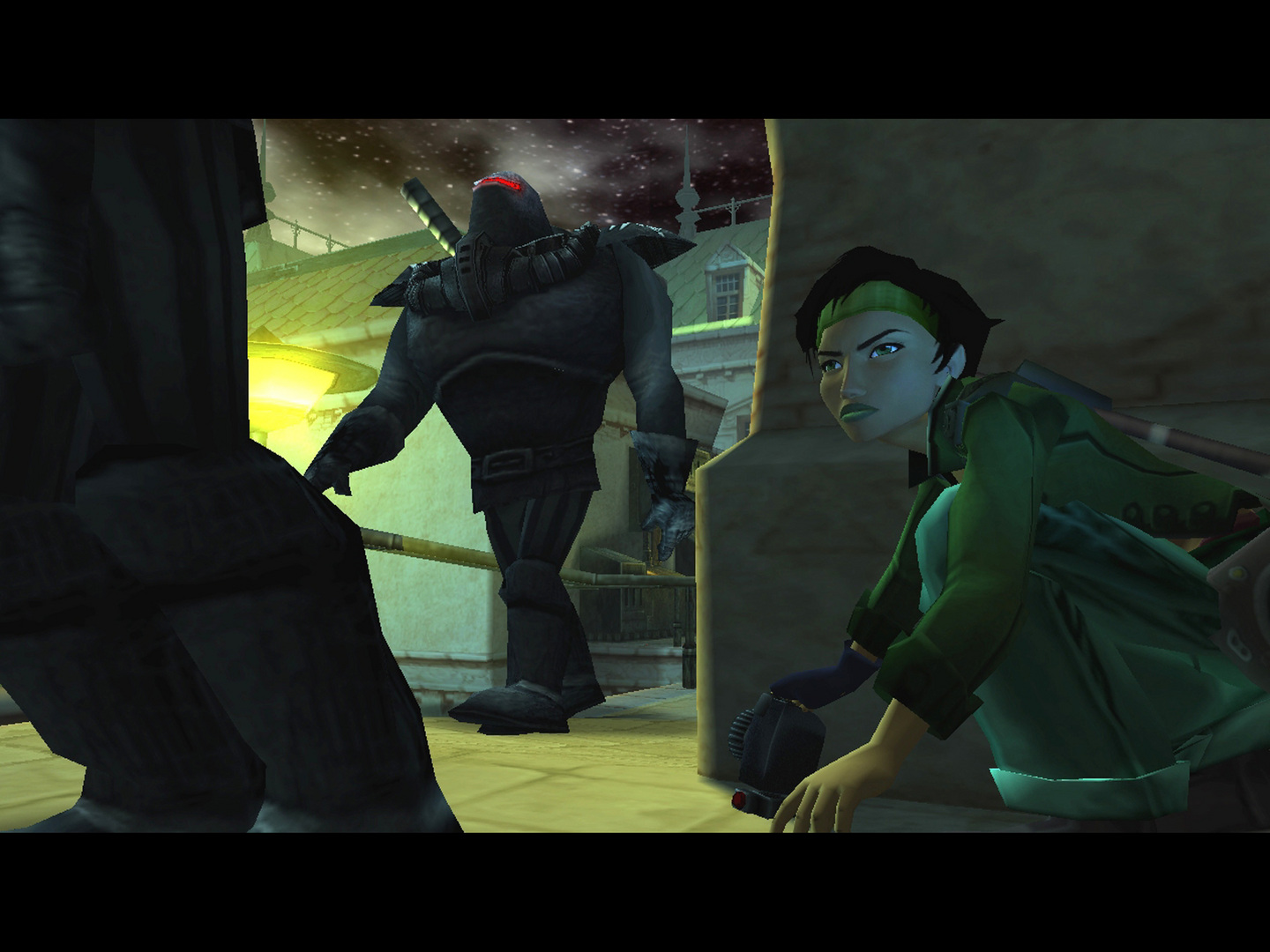
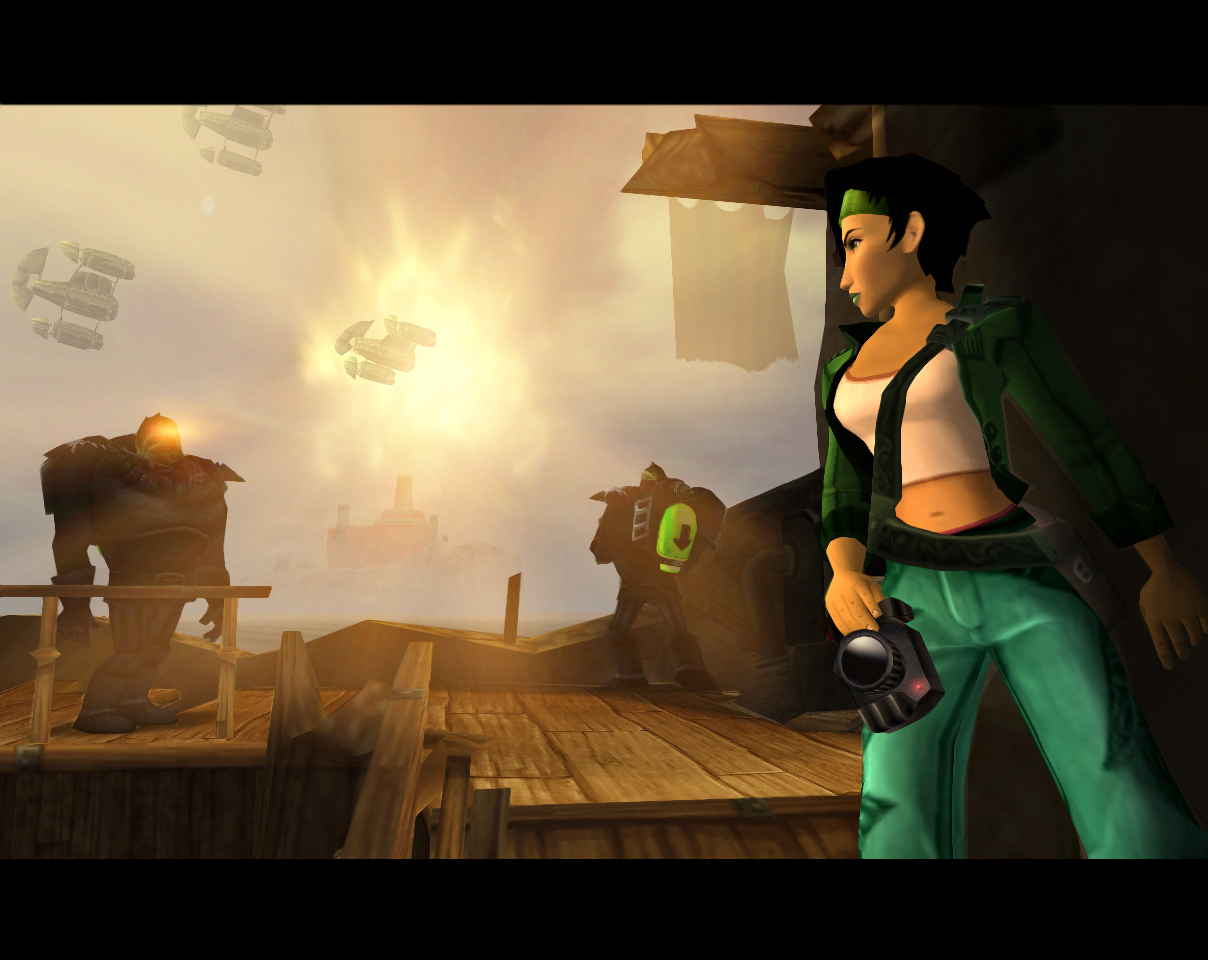
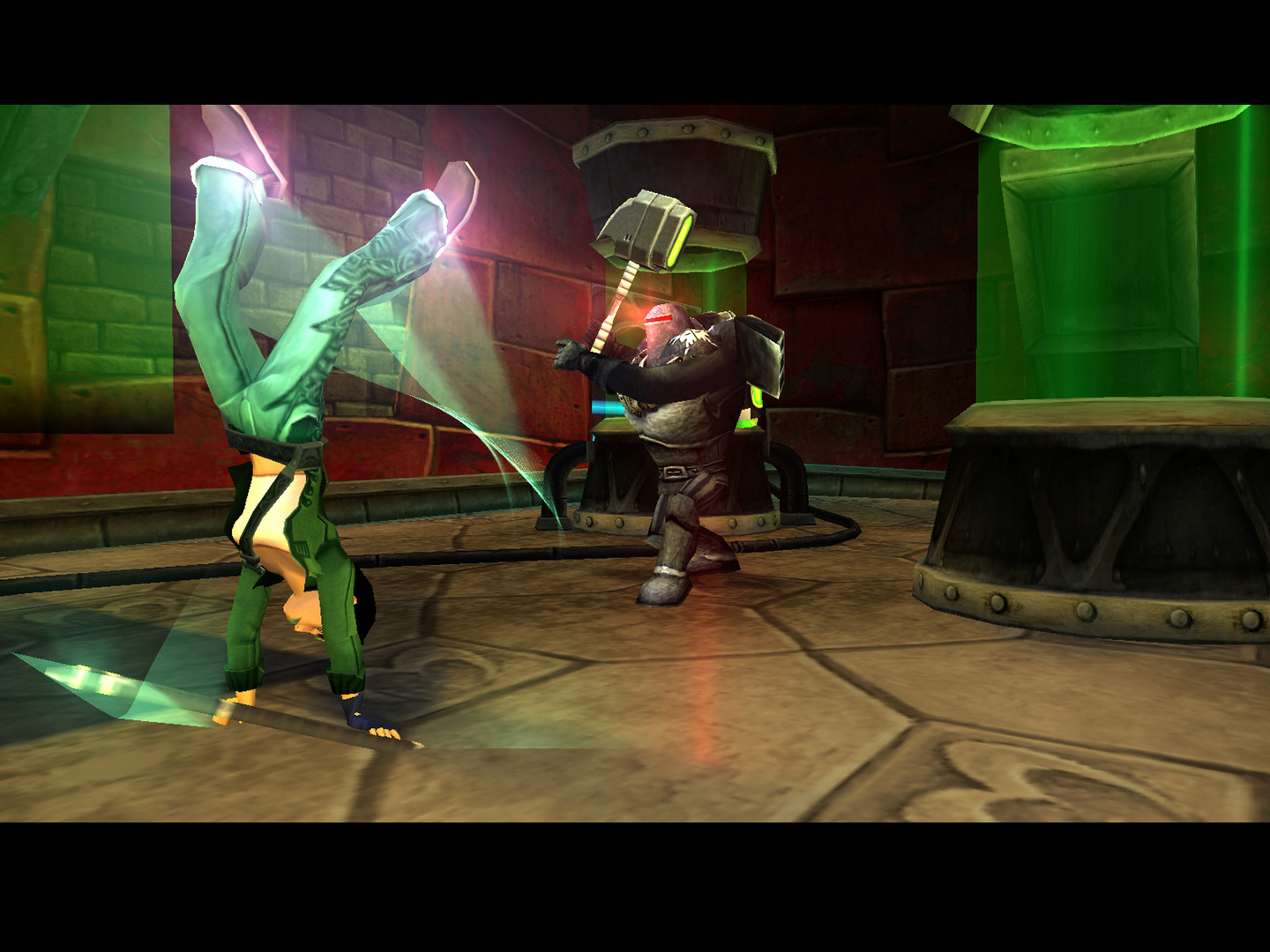
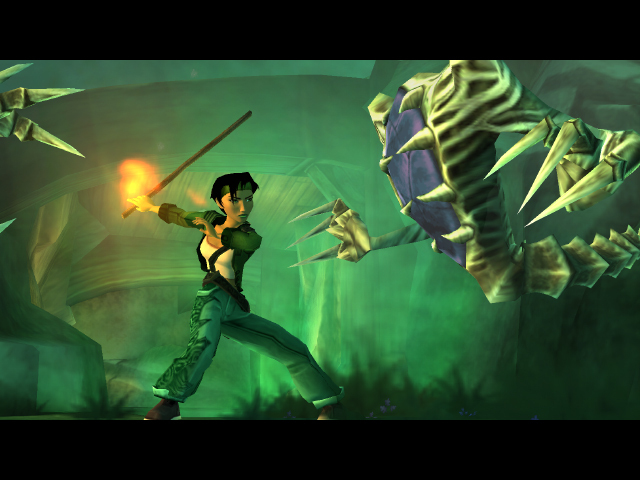
Official store screenshots from Steam — deckport links them, never rehosts. Hover to pause; click to preview.
Identity
Launch
- Binary
- BGE.exe
- Needs files
- none beyond the binary
Proton
- Version
- proton_experimental
- Winetricks
- —
- ProtonDB
- ProtonDB Gold runs perfectly after tweaks
⚙ Setup notes
Which game: This is the original 2003 Beyond Good & Evil (Steam appid 15130) — *not* the console-only "HD" remaster (2011) and *not* the separate 20th Anniversary Edition (appid 2556990). The original was delisted from Steam around the 20th Anniversary launch (2024). Main executable is BGE.exe in .../steamapps/common/Beyond Good and Evil/.
Proton: Use proton_experimental (or a recent GE-Proton, e.g. GE-Proton7-39+). ProtonDB rates the title gold (strong confidence). Experimental/GE help with the cutscene audio desync and audio drop-outs that plague stock Proton; some reporters still replace dsound.dll and pin the CPU governor to performance to fully fix cutscene audio sync.
Display / settings app: The bundled SettingsApplication.exe is unreliable under Wine/Proton (it crashes with several D3D paths), so you often cannot change language or resolution from it — the game tends to start at a non-native resolution. Workarounds: set resolution/HW Vertex Processing via the settings app on a Windows box, or apply the PCGamingWiki/GameBanana widescreen fix (drop the d3d9 injector next to BGE.exe and edit d3d9.ini) plus a NoBands registry entry to remove black bars. The GOG build ships pre-patched with an in-game language option and is the easier source if you own it.
Controller: The Steam build exposes gamepad support, but mapping is rough and on-screen prompts don't update; the easiest path on Deck is a Steam Input community layout that remaps run and camera — that gives full console-style controls even if native binding is fiddly.
The one thing to know
Supply your own copy. deckport links nothing.
Which game: This recipe is the original 2003 Beyond Good & Evil (appid 15130), not the console-only HD remaster and not the 20th Anniversary Edition (appid 2556990). The original was delisted from Steam around the 20th Anniversary launch (2024).
Status: ProtonDB gold (strong confidence); community reports confirm it runs on the Deck under proton_experimental / recent GE-Proton, so this is needs-test rather than verified — nobody has signed off on this exact recipe yet.
Display: The bundled SettingsApplication.exe is unreliable under Proton (can't change language or resolution from it; may launch at the wrong resolution). Apply the PCGamingWiki/GameBanana widescreen fix next to BGE.exe (+NoBands registry entry) or pre-set resolution on Windows. The GOG build is pre-patched and easier if you own it.
Audio: Defaults to French and stock Proton has cutscene audio desync; experimental/GE help, and some reporters also replace dsound.dll and set the CPU governor to performance.
Controller: Works but binding is fiddly (prompts don't update) — use a Steam Input community layout for clean console-style controls.
Binary: BGE.exe in .../steamapps/common/Beyond Good and Evil/; confirm against your install.
Community guides
Write-ups and threads from people who got this (or a similar) game running. deckport links to them — it doesn't reproduce them.
Get the artwork
deckport never hosts game images. Open this game on SteamGridDB, pick
the cover / hero / logo / icon you like, and drop them into the
game folder under .deckport-art/ before you push it to the
Deck. The importer files them under the right names automatically.
Run it on your Deck
Two files: the one-time importer (deckport.py) in your
Deck's home folder, and this game's install helper. Copy the game
into ~/Games and run the helper with Steam closed — it
writes the recipe (binary, launch options, Proton version)
and registers the shortcut with artwork.